
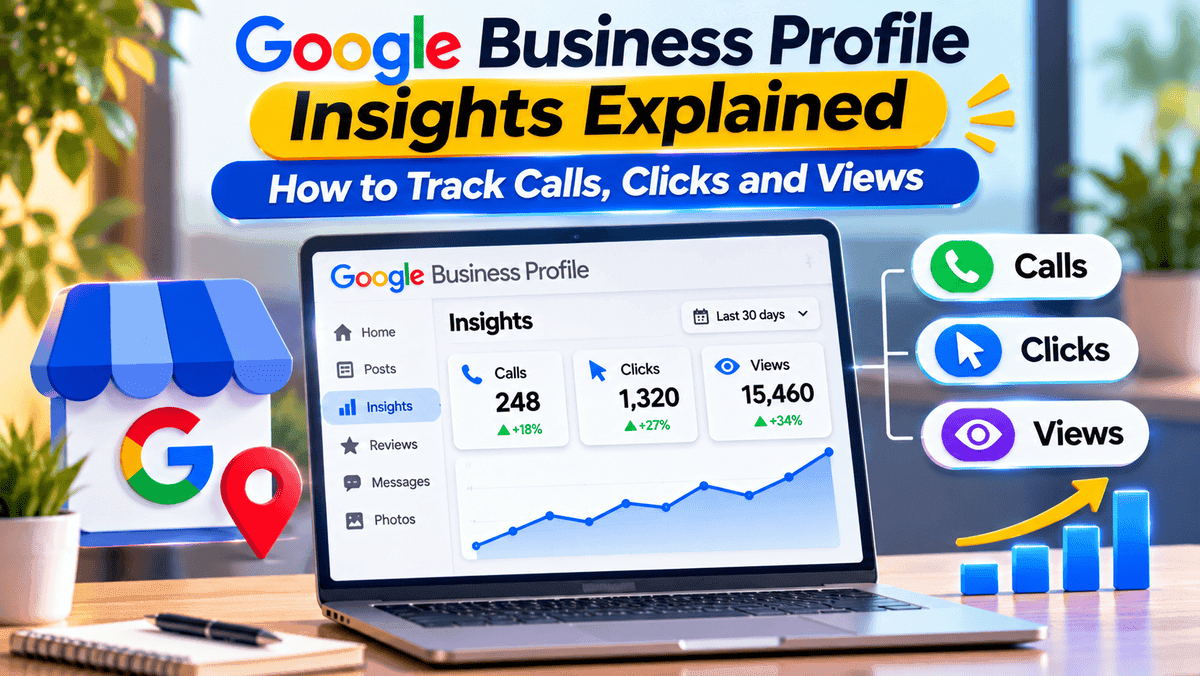
Google Business Profile insights show how many people see your listing, call you, visit your website, and ask for directions. If you have ever wondered whether your profile brings real interest or just sits quietly on Google, these numbers give you a first answer. The Performance report puts them in one place, so you can watch trends and spot changes early. This guide explains where to find the data, what each number means, what it does not prove, and how to use it sensibly.
What Are Google Business Profile Insights?
Google Business Profile insights are the performance numbers Google shows verified owners and managers about how customers find and use a listing on Search and Maps. Google's help page uses two related labels. Performance is the report with views, search terms, and customer actions such as calls and clicks. Insights is a separate feature that offers recommendations based on public information like reviews, photos, and local search trends. Google says it may not be available for every profile. This guide focuses on Performance, because these built-in Google Business Profile analytics are where calls, clicks, and views are reported.
How to Check Google Business Profile Insights
You can open the report on Google Search or in the Google Maps app. You must have a verified profile and be signed in to the Google Account linked to it. To confirm the steps, see Google's official Business Profile performance guide.
Check Performance Through Google Search
- Go to business.google.com and open your Business Profile.
- Click Performance.
- Select a time period at the top.
- Click Apply.
To see Insights recommendations instead, click Insights rather than Performance.
View Performance in Google Maps
- Open the Google Maps app on your phone.
- Tap Business at the bottom right.
- Next to Performance, tap See more.
- Choose a time period, then tap Apply.
Key Google Business Profile Metrics Explained
Only metrics that apply to your business appear, so you may not see every item below. The data covers activity from both organic search results and Google Ads.
Profile Views and Search Terms
Profile views count the unique people who viewed your Business Profile on Search and Maps. Google counts a person only once a day, so repeat visits on the same day add nothing. Someone who visits on several devices, such as desktop and mobile, or on both Search and Maps, can be counted a limited number of times. That is why your report may show fewer views than the numbers you see on the profile or in email notifications.
Profile views are also not the same as total search impressions. They count views of your Business Profile only, not every time your business appeared somewhere else on Google.
Search terms show the queries that led to your profile. Google updates this metric at the start of each month, and it can take up to five days to appear. You cannot directly manage these queries.
Phone Calls and Website Clicks
Google Business Profile calls are counted when someone clicks the call button on your profile. You need a phone number on the profile to track them. Google Business Profile website clicks count how often people clicked your website link. Both measure interest. Neither shows what happened afterward.
Direction Requests and Other Customer Actions
Direction requests count people who asked for directions. Google adjusts the count for multiple taps, cancelled requests, and spam. Depending on your business, you may also see bookings (completed through a booking provider), menus, products, or offers. Google's help page lists a Messages metric, but Google ended its Business Profile chat feature in 2024. Do not assume messaging data applies to your profile.
| Metric | What it measures | What it does not prove |
|---|---|---|
| Profile views | Unique people who viewed your profile on Search and Maps, counted once a day | Total search impressions or all exposure to your business |
| Search terms | Queries that showed your profile, reported monthly | Every search in your market, or your ranking |
| Calls | Clicks on the call button | Answered or completed calls |
| Website clicks | Clicks on your website link | Enquiries, purchases, or conversions |
| Directions | Requests for directions, adjusted for repeat taps, cancellations, and spam | Actual visits |
| Bookings | Completed bookings through a booking provider | Bookings made by phone or in person |
How to Track Calls, Clicks and Views Over Time
To track Google Business Profile performance, pick a date range, record the same few numbers each month, and compare like with like. Add a note whenever something changes, such as new hours, new photos, a closure, or an ad campaign. If your business is seasonal, compare a month with the same month last year.
UTM parameters are short tags added to the end of a web address so Google Analytics can tell where a visit came from. For example, if your profile's website link ends with ?utmsource=google&utmmedium=organic&utm_campaign=business-profile, Google Analytics can list those visits under the campaign name "business-profile". You can then compare them with visits from social posts or emails. The total may differ from website clicks in Performance, because the two tools count different things.
Here is a fictional comparison, not real data. A dental clinic records 1,200 profile views, 90 call clicks, and 60 website clicks in March. In April it records 1,500 views, 92 call clicks, and 58 website clicks. Views grew by 25 percent, yet calls and website clicks barely moved. The report shows what changed, not why. The clinic should first check its notes for an ad campaign, a seasonal pattern, or new opening hours. If nothing explains the jump, it should look at the profile itself using the checks below.
How to Use Google Business Profile Insights to Improve Results
No change to a profile guarantees rankings, calls, or sales.
Improve Your Listing Based on Search Terms
Read your search terms each month. If people find you for a service you offer but barely mention, add it to your description or services. If terms point to something you no longer provide, review your categories and wording. For a wider checklist covering your profile, citations, and reviews, read our guide on how to improve local SEO rankings.
Turn Profile Views Into Customer Actions
When views rise but calls and website clicks stay low, check what visitors see. Confirm the phone number and website link are correct and work on a phone. Check regular and holiday hours. See whether photos, services, and your description answer the questions a visitor is likely to have. Also look at your search terms, because extra views from searches that do not match your services will not turn into actions. Then change one thing at a time and note the date, so you can tell what helped.
How to Download a Google Business Profile Performance Report
Download reports from Business Profile Manager on a computer. If you manage several profiles, you can download them together and compare the same period for each location.
- Go to Business Profile Manager at business.google.com.
- Tick the checkbox next to the profiles you want.
- At the top right, click Actions, then Insights.
- Select the timeframe.
- Click Download Report. If a "Download ready" box appears, click Download.
Google labels this menu option Insights, but the file contains performance data. If a column shows ***, the profile may not be enabled for downloads.
Why Google Business Profile Insights May Be Missing or Inaccurate
The usual causes are an unverified profile, the wrong Google Account, or a metric that does not apply to your business. Also check these points:
- Calls need a phone number on the profile, and bookings need a booking provider.
- The searches metric updates monthly, so recent days may be blank.
Common Mistakes When Reading Google Business Profile Data
- Comparing an unfinished month with a full month.
- Judging success by views alone.
- Ignoring customers who dial your number by hand instead of tapping the call button.
Frequently asked questions
Final Thoughts
Treat Google Business Profile insights as a monthly check on customer interest, not proof of sales. Record the same few numbers each month, note what changed, and compare them with your own call logs, bookings, and sales. That is how the data points to your next improvement, and no report can promise rankings or revenue.
Growth Specialist
Specializes in helping local businesses maximize online visibility and customer engagement.
About the Author
Sarah JohnsonGrowth Specialist
Specializes in helping local businesses maximize online visibility and customer engagement.